Team Management
Learn how to manage your organization's team members.
As an Organization Admin, you are responsible for managing the people in your organization.
Managing Team Members
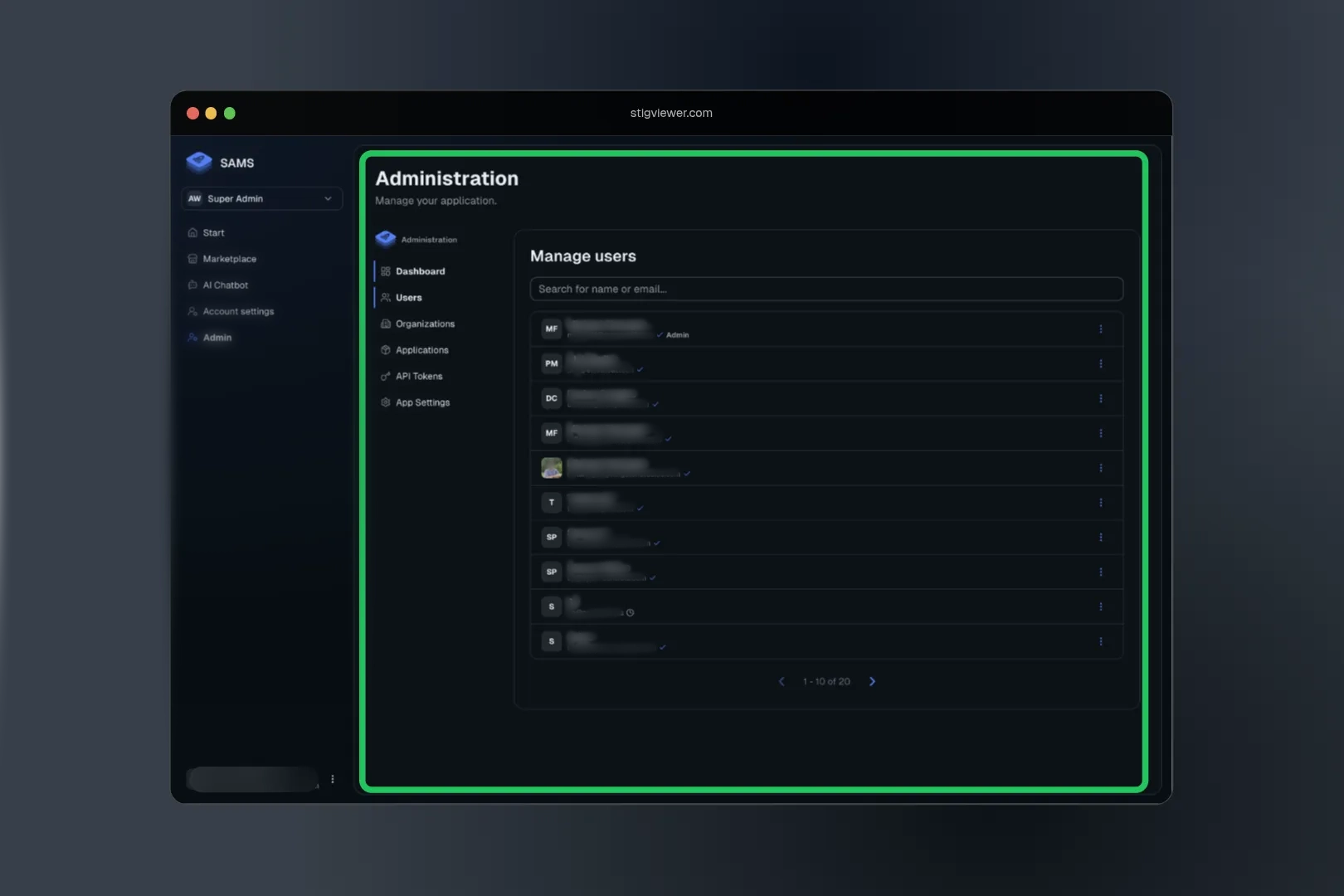
Inviting New Members
- Go to Organization Settings: Navigate to Settings > Members
- Send Invitation: Enter the person's email address
- Choose Role: Decide if they should be an Admin or Member
- Send: They'll receive an email invitation to join
Managing Existing Members
- Change Roles: Update member permissions.
- Remove Members: Remove people who no longer need access.
- Monitor Activity: See when members last signed in.
Note: You cannot modify the role of the Organization Owner or remove them from the organization.
Organization Settings
General Information
- Update your organization's name and description
- Add a logo or profile picture
- Change contact information
Member Management
- See all current members and their roles
- View pending invitations
- Remove members or change their permissions
Common Questions
What is the difference between Owner and Admin?
- Owners and Admins share almost all permissions, including billing and settings.
- The key difference is hierarchy: Admins cannot remove or demote the Owner.
- Owners are responsible for promoting members to Admins.
Can I create my own organization?
This depends on your account settings. Some organizations allow any user to create new organizations. If you need to create an organization and can't find the option, contact support.
What if my organization admin leaves?
Organizations need at least one admin. If the only admin leaves or becomes inactive, contact support or the organization owner to help transfer admin rights to another member.